How do I play in Visual Novel mode?
Visual Novel mode reads a journey the way a visual novel does. The scene fills the screen, the characters stand on stage, and the text arrives line by line in a dialogue box at the bottom, with a nameplate for whoever is speaking. You...
Visual Novel mode reads a journey the way a visual novel does. The scene fills the screen, the characters stand on stage, and the text arrives line by line in a dialogue box at the bottom, with a nameplate for whoever is speaking. You click through the lines, then pick what to do next. The story itself is unchanged: same world, same narrator, same turns.
Visual Novel mode is in beta.
Who can use it?
Visual Novel mode is open to anyone with a paid subscription, anyone who has spent $50 or more on credit packs over time, and holders of the Top creator badge. If your access lapses later, a journey saved as a visual novel plays in the Immersive style until it is back.
The world also has to support the immersive stage (a background picture and characters with enough sprites), or the option does not show. Party journeys never use it.
How do I turn it on or off?
While playing, open Settings (the gear), go to the Scene tab and look under Journey style. Pick the Visual novel tile, next to Standard and Immersive. Only the journey's owner can change the style.
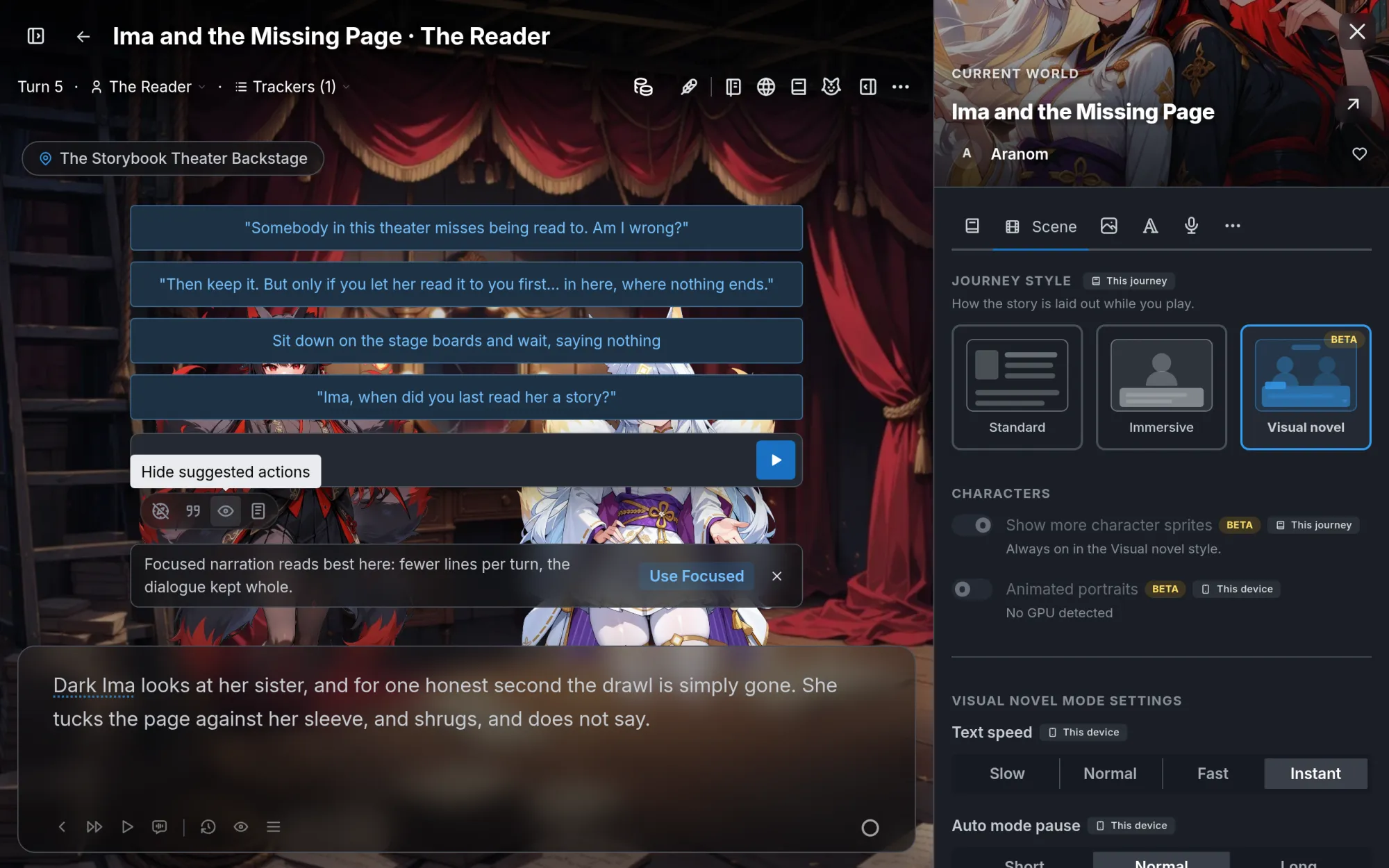
The first time you open a journey this way, a popup titled Reading as a visual novel offers settings that read well in this mode. Tick the ones you want and press Use these settings, or Keep my settings to leave everything as it is. All of them can be changed later in Settings:
- Focused narration: shorter turns with the dialogue kept whole, so there are fewer lines to click through. Free, ticked by default.
- Automatic location backgrounds: paints a backdrop the first time the story reaches a place that has no picture. This spends credits, so it starts unticked.
- Read aloud: only the characters: you read the narration in the box, so read aloud voices only the spoken lines. It also costs less.
To leave the mode, open the Menu at the right end of the control row and choose Exit Visual Novel mode, which takes you back to Immersive. Picking another tile under Journey style works too.
What is on the screen?
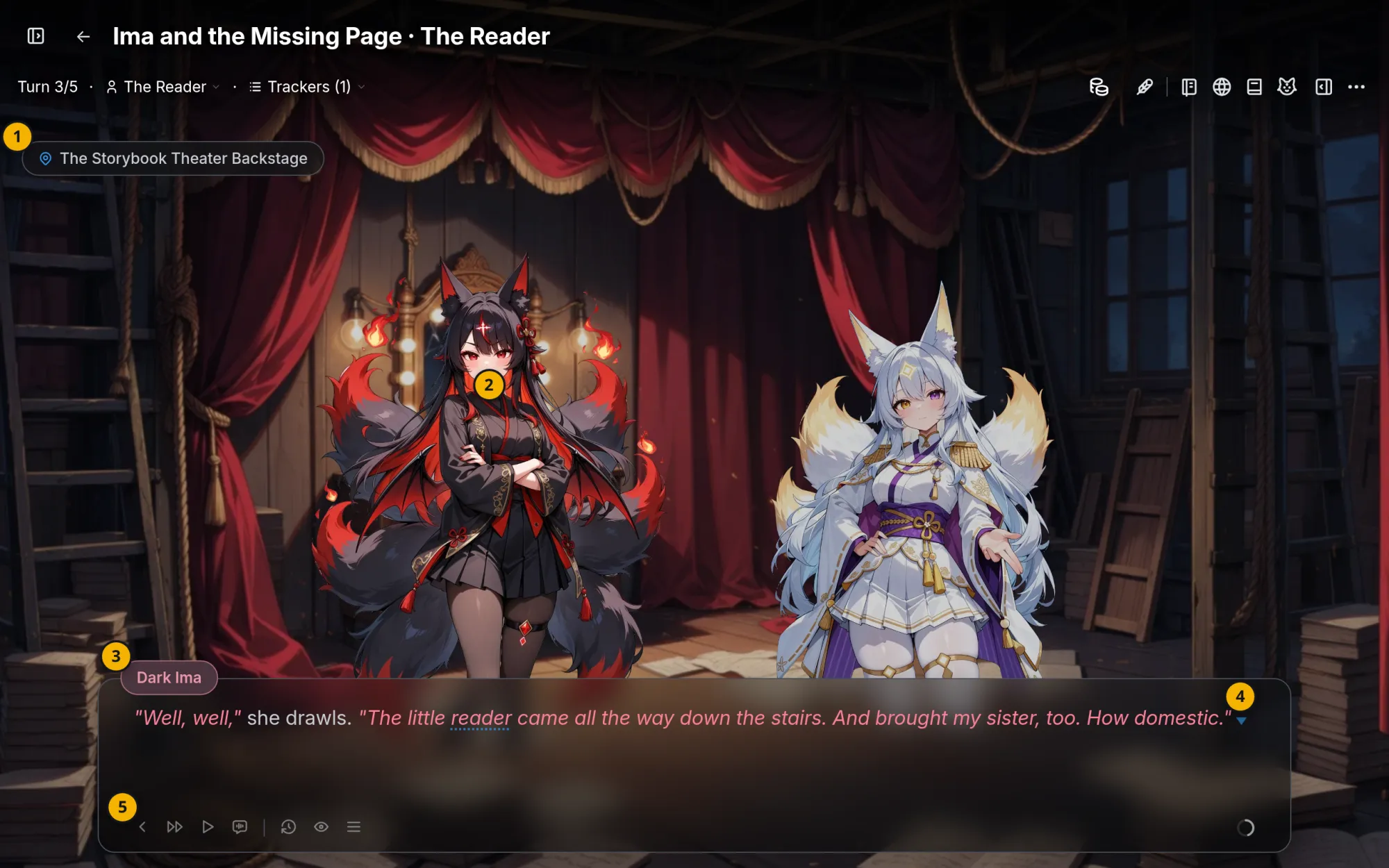
Following the numbers on the picture:
- Place and clock: where the story is and, on worlds that keep one, the in-story time. When a turn moves you somewhere new, the place name appears briefly over the scene. On the other side of the screen, Music and Map buttons appear when the world has music or a map.
- The stage: the characters present in the scene, over the location backdrop.
- The nameplate: who is speaking. On your own actions it shows your character's name.
- The dialogue box: the current line, typed out. A small bobbing triangle appears once the line is complete. While the narrator writes the next turn, the box echoes your action with waiting dots.
- The control row: Back, Skip, Auto, Voice (when read aloud is available), History, Picture (on turns that have one), Hide, and Menu. At the far right of the box sits the turn menu, a progress ring that fills as you read the turn.
The controls are icons. Hover one to see its name, or turn on Show button labels in Settings.
Reading
Moving through the lines. Click the scene or the box, or press Space, Enter or the right arrow, for the next line. A line still being typed finishes first. Back or the left arrow steps back one line.
Skip. Skip runs quickly through lines you have already read and stops at the first one you have not seen, or at the end of the latest turn. To run through new text as well, turn on Skip unread text too in Settings. Skip silences read aloud while it runs.
Auto. Auto turns the pages for you: each line stays a moment after it is fully shown, then the next one comes. Text speed (Slow, Normal, Fast or Instant) and Auto mode pause (Short, Normal or Long) are in the Menu as well as in Settings. At the end of a turn, Auto brings up the choices. A click, or any key that moves forward, turns it off.
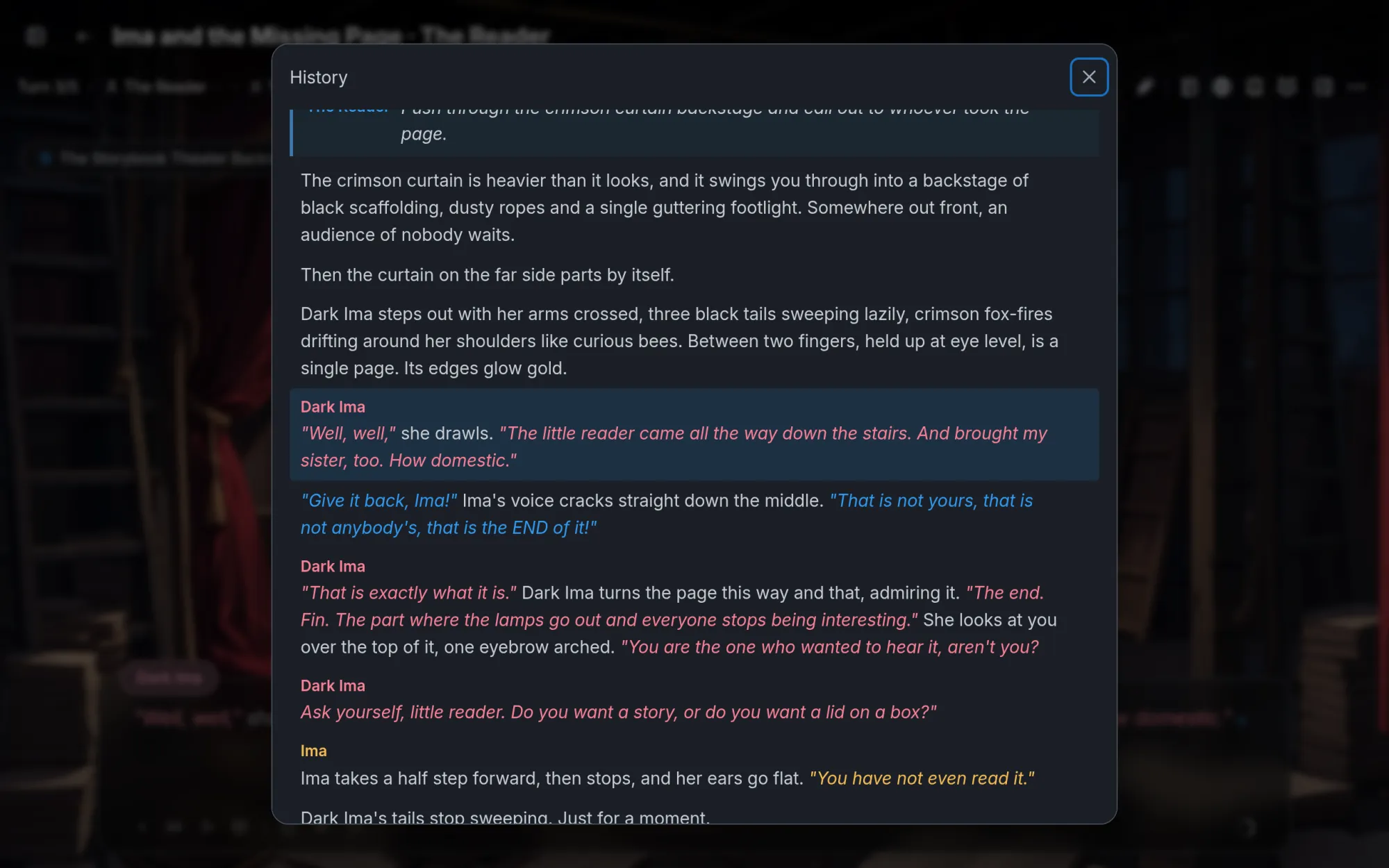
History . History lists every line you have loaded, with its speaker, plus your own actions between turns. Click a row to jump back to that line. Each row has a Copy line button, and Load earlier turns appears when there is more.
The turn menu. The ring at the right end of the box opens a menu for the turn you are on. Turn details opens the turn's details, with arrows to move between turns. Previous turn and Next turn page by whole turns, Last line of this turn jumps to the end, and Back to the latest turn returns to where the story stands. On turns with an action, the same menu offers read aloud, Edit narration, Regenerate and Turn options, which holds the rest of the usual turn controls.
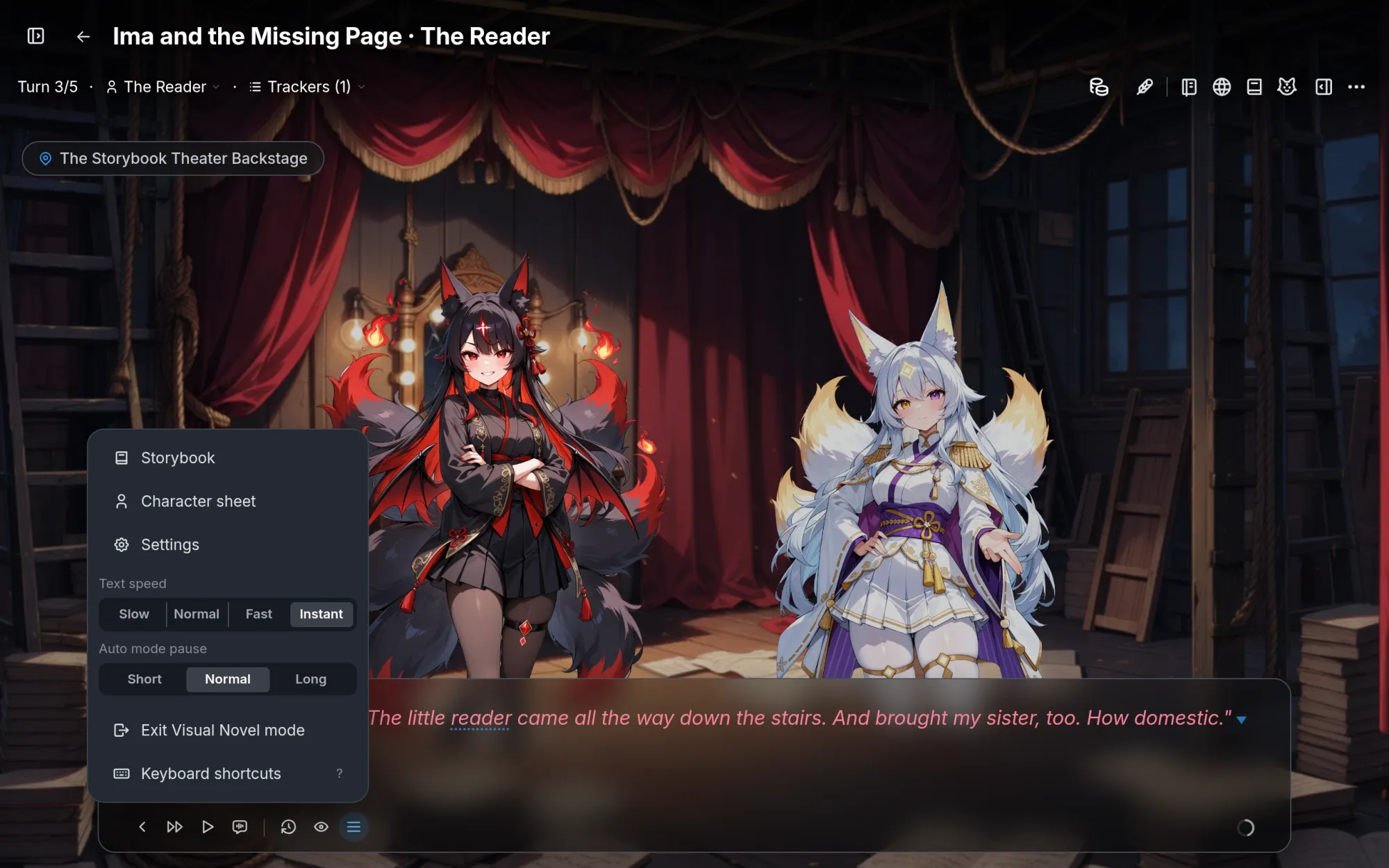
The Menu. Menu :menu-2: gathers the rest: Storybook, Character sheet, Settings, Soundtrack on worlds with music, Text speed, Auto mode pause, Exit Visual Novel mode, and on a computer Keyboard shortcuts.
Turn pictures. When a turn has a turn image, it is shown whole over the scene, between the pills and the box, on a blurred copy of the backdrop. It comes up at the start or the end of the turn depending on the kind of picture. Picture shows or hides it for the rest of the turn. Double click it (double tap on a phone) to open it zoomed, where you can pinch, drag or scroll to look closer. A single click on the picture hides the interface instead.
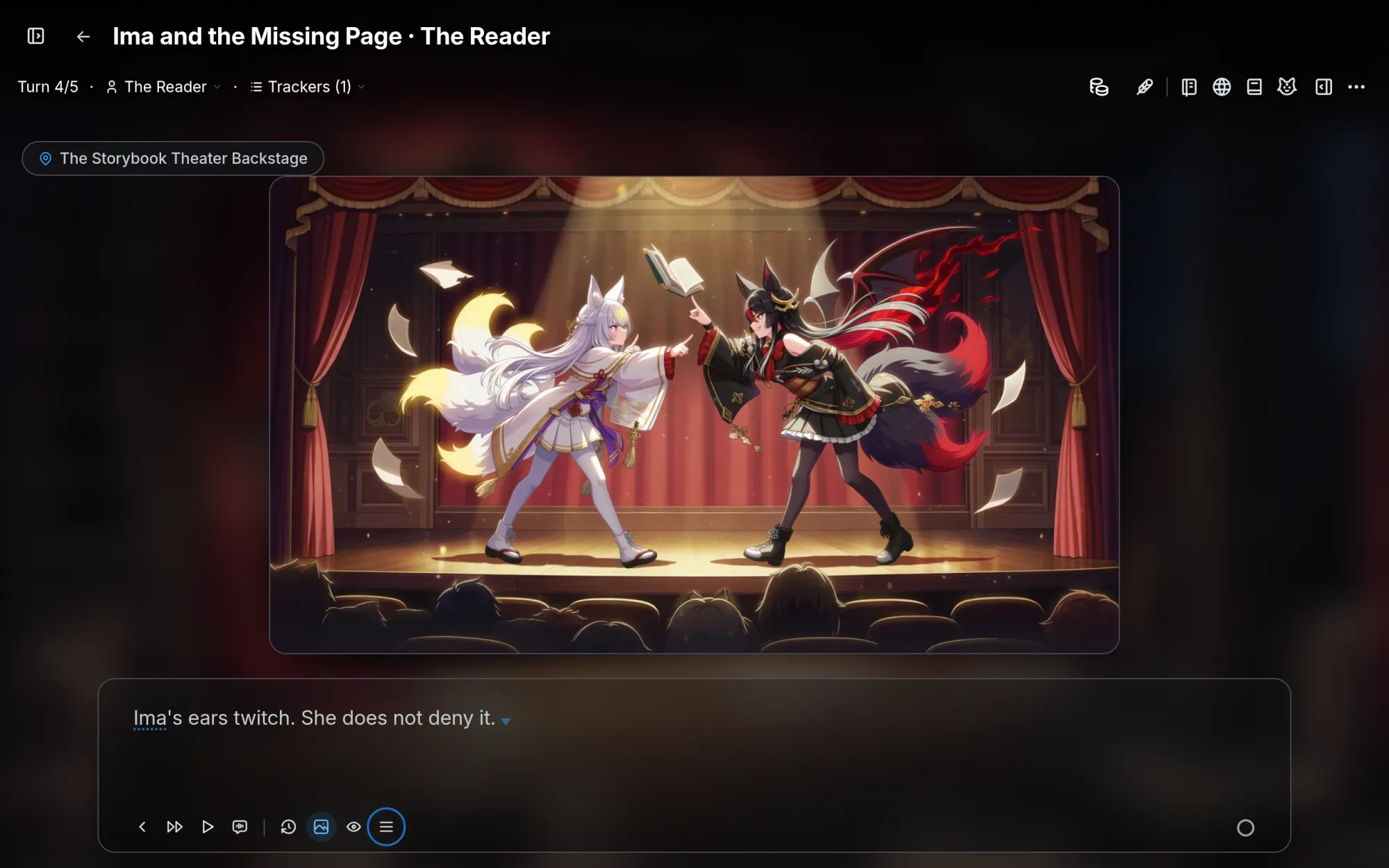
Hiding the interface. Hide clears the box and the controls so only the scene remains. A right click does the same. Click, or press Space, Enter or Esc, to bring everything back.
Read aloud. Voice reads the turn line by line as the box shows each line, and Auto waits for a voice to finish before moving on. The first read of a turn shows what it costs. See read aloud for voices, settings and prices.
Making choices
Once the last line of a turn is complete, one more click (or Auto's pause) brings up the choices over the scene: the suggested actions, with the action box underneath for writing your own. One click on a choice plays it. Type in the box when none of them fit.
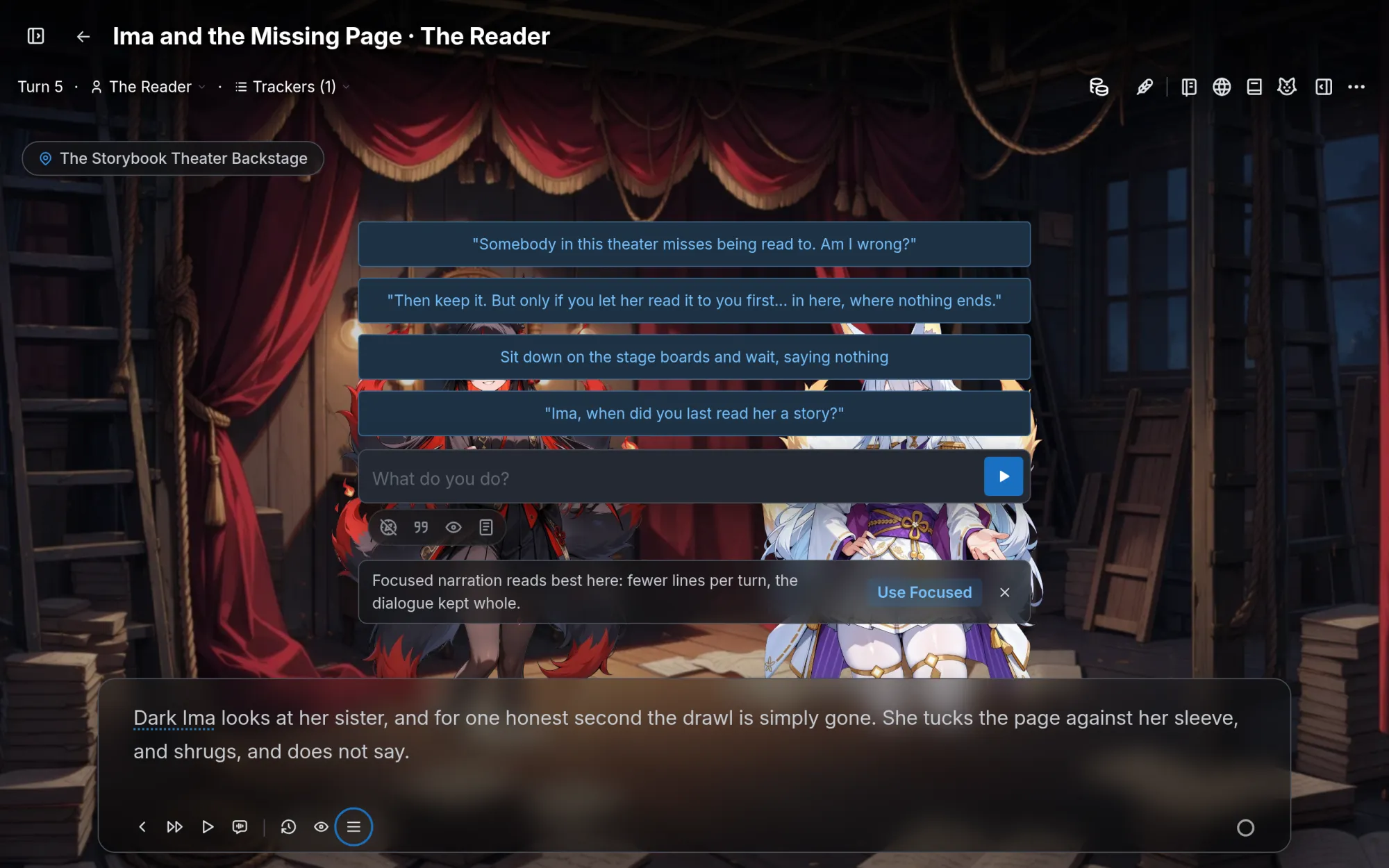
If you would rather tweak a suggestion before it goes, turn on Edit choices before sending in Settings. A click then puts the choice in the action box, and a second click on the same choice sends it.
With the keyboard, the up and down arrows highlight a choice and Enter plays it, the number keys 1 to 9 play one directly, and T puts the cursor in the action box.
Keyboard and mouse
Press ? at any time, or choose Keyboard shortcuts in the Menu, to see the full map.
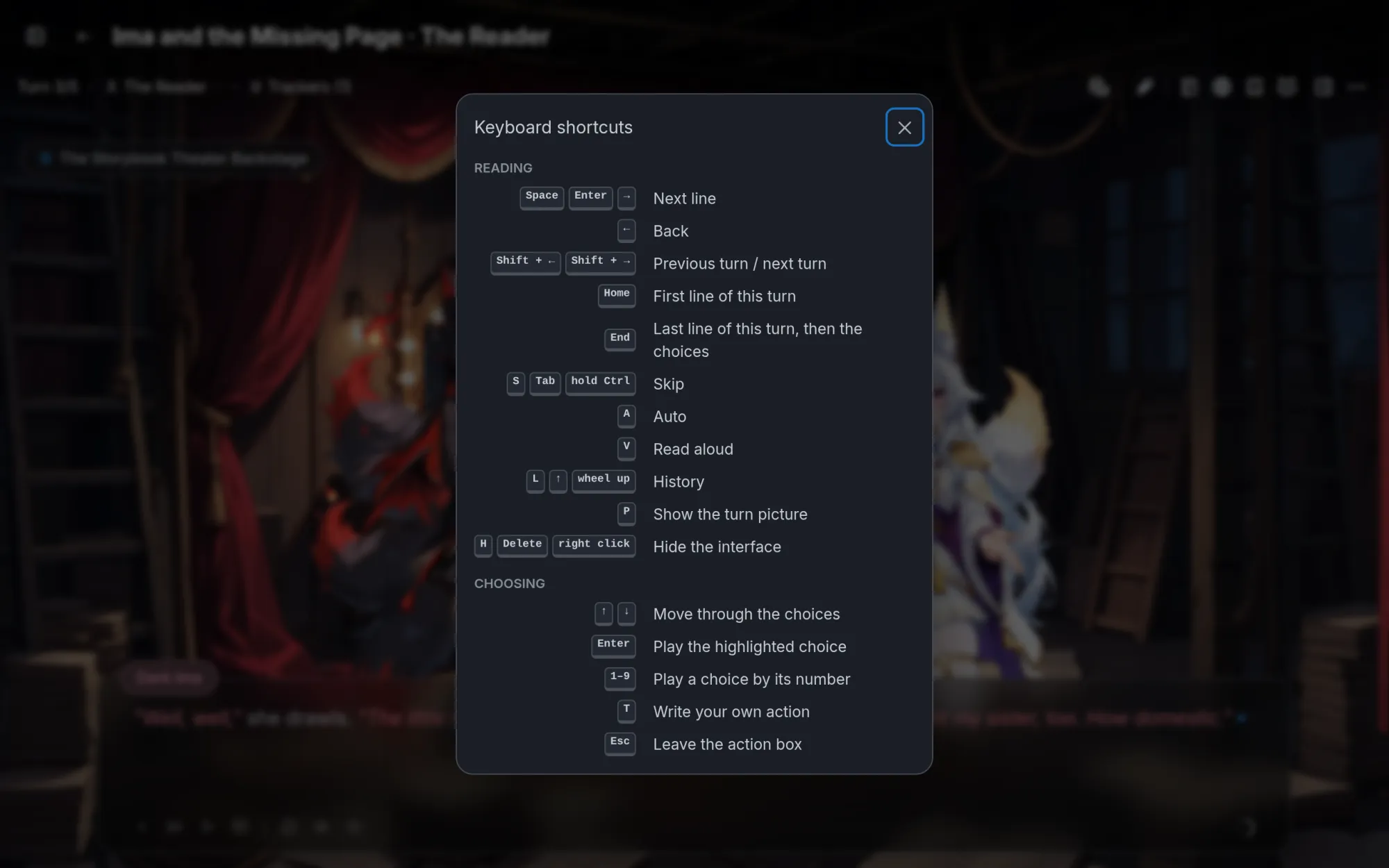
| Keys | Action |
|---|---|
| Space, Enter, → | Next line |
| ← | Back |
| Shift + ←, Shift + → | Previous turn, next turn |
| Home | First line of this turn |
| End | Last line of this turn, then the choices |
| S, Tab, hold Ctrl | Skip |
| A | Auto |
| V | Read aloud |
| L, ↑, wheel up | History |
| P | Show or hide the turn picture |
| H, Delete, right click | Hide or show the interface |
| ↑, ↓ | Move through the choices |
| 1 to 9 | Play a choice by its number |
| T | Write your own action |
| Esc | Leave the action box |
| ? | Keyboard shortcuts |
Page Down and Page Up also move forward and back. Keys are ignored while you are typing in a field or a popup is open.
With the mouse:
- Click the scene or the box for the next line.
- Wheel down goes to the next line. Wheel up opens History, or steps back one line when Scroll wheel moves backlog is on in Settings.
- Right click hides or shows the interface.
- Double click the turn picture to open it zoomed.
On a phone or tablet
| Gesture | Action |
|---|---|
| Tap the scene or the box | Next line |
| Swipe down on the scene | History (or back one line, see above) |
| Long press on the scene | Hide or show the interface |
| Double tap the turn picture | Open it zoomed, then pinch and drag to look |
| Long press on a control button | Show its name |
Swiping sideways does nothing on purpose, since that gesture belongs to your phone's back navigation.
In portrait, the place and the clock sit in two small pills, the box is a little shorter, and a Journey tools button joins the control row, with a dot when something new is waiting there. When the choices come up, the box shrinks to its last line to make room.
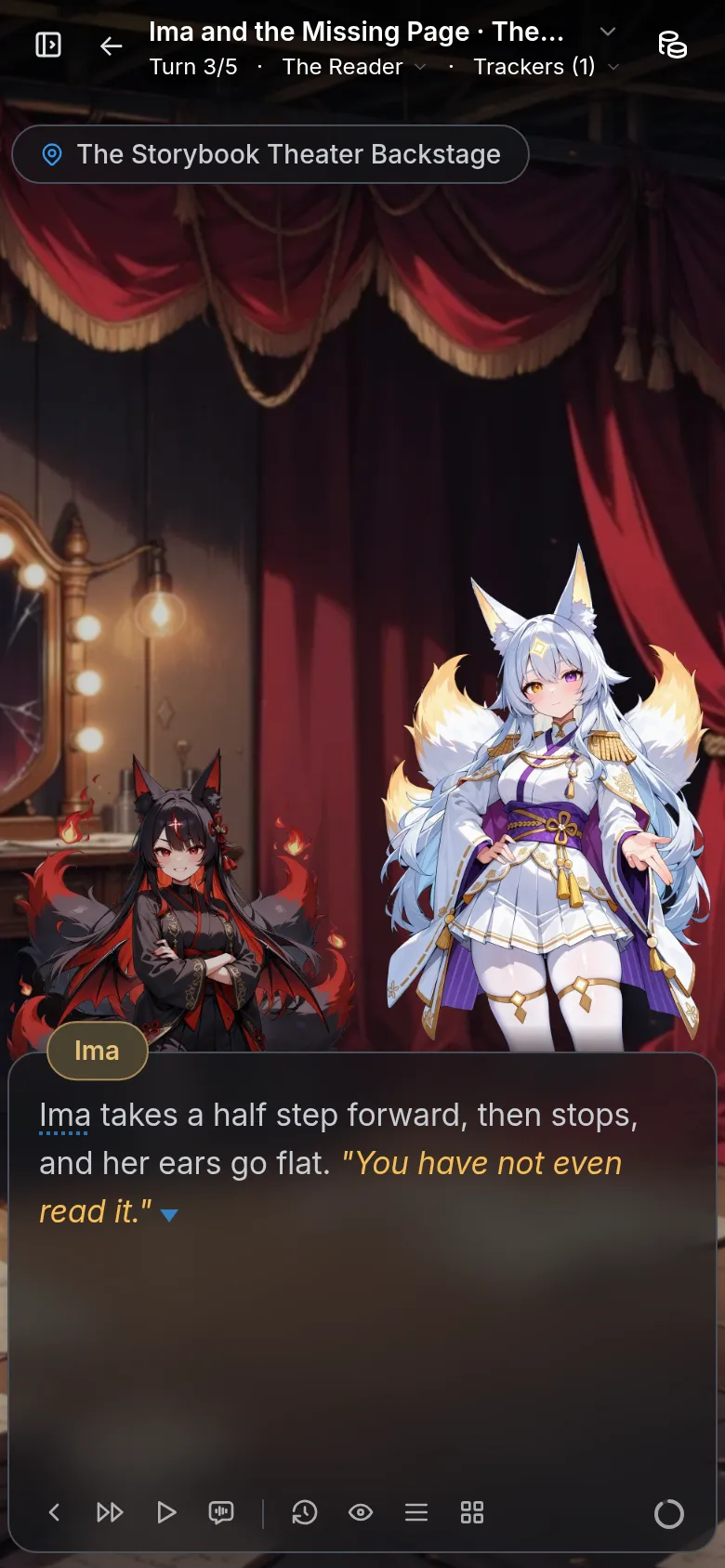
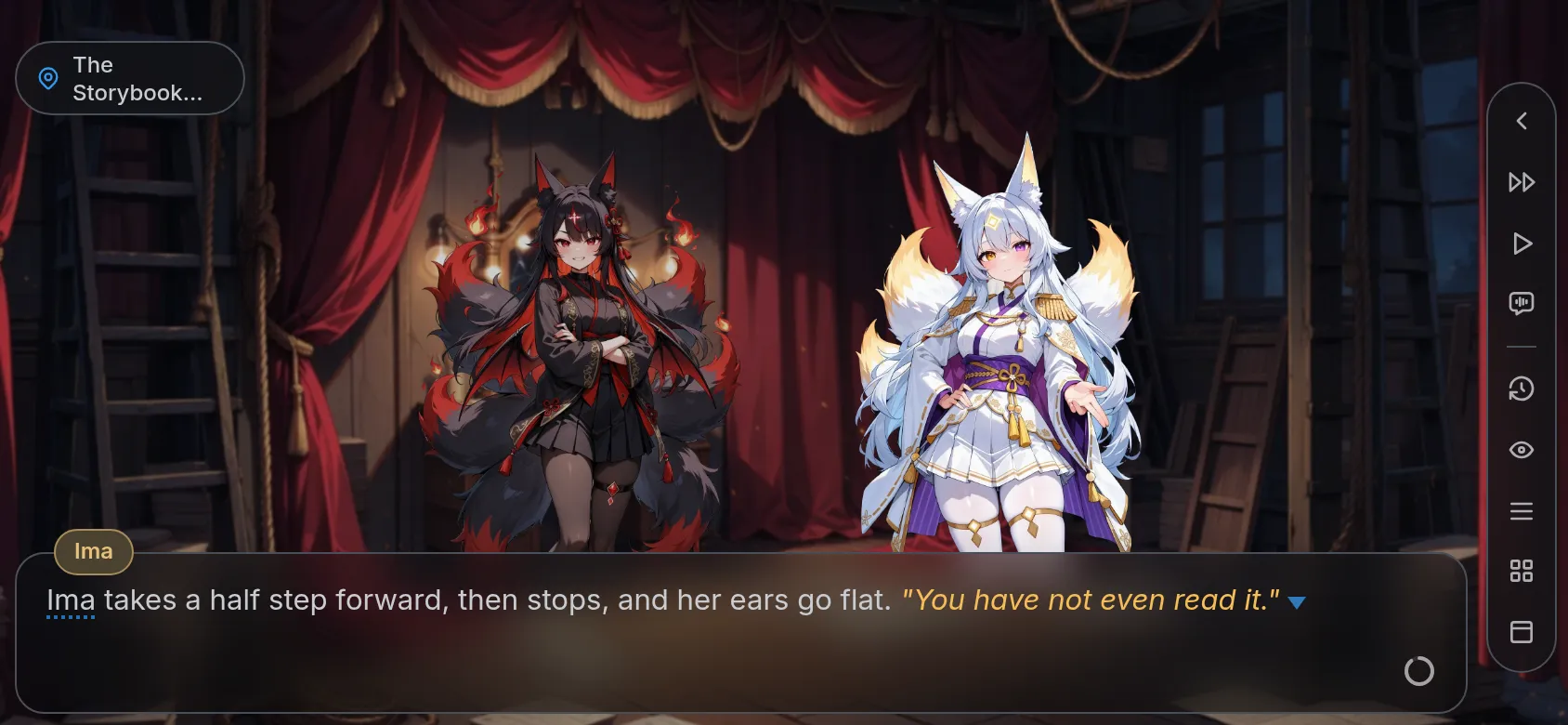
In landscape, the journey header folds away to give the scene the whole screen, and the controls move to a vertical rail on the right edge. A button in the rail brings the header back. The place and clock stack on the left, the Menu opens beside the rail, and History opens full screen.
Settings
Open Settings from the gear or the Menu, then the Scene tab, for Visual novel mode settings. They apply on this device, in every journey you read as a visual novel.
- Text speed: Slow, Normal, Fast or Instant. Devices set to reduce motion always show lines instantly.
- Auto mode pause: Short, Normal or Long. Longer lines get a little more time.
- Show turn images over the scene: on by default.
- Edit choices before sending: a choice fills the action box instead of playing at once.
- Character reactions (beta): small animated reactions from the characters on stage. Off by default, and unavailable while your device reduces motion.
- Skip unread text too: Skip runs through lines you have not read yet.
- Show button labels: names under the control icons. Wide screens only.
- Scroll wheel moves backlog: wheel up steps back one line instead of opening History. Mouse only.
In the same tab, Show more character sprites is always on in this style.
Anatomy of a journey: what's on the play screen?
Once you start playing, the screen splits into three zones: a header bar at the top, the narrative in the middle, and your action input at the bottom. Here's what every part does.
What is Ask Ima?
Sometimes you want to ask a question about the story rather than play it out: "wait, who is this person again?", "what was I trying to do?", "how do my choices actually work here?". Ask Ima lets you step out of the story and talk to the...